IP Wizard
Hop between AV and show networks in one click.
Built for AV integrators and live-production crews. Save IP settings for each network interface, switch several of them at once, and watch your DSPs, displays, consoles, stageboxes, cameras and switchers answer — then find what's on the network and control it, whether you're commissioning a room or loading in a show, without digging through System Settings.
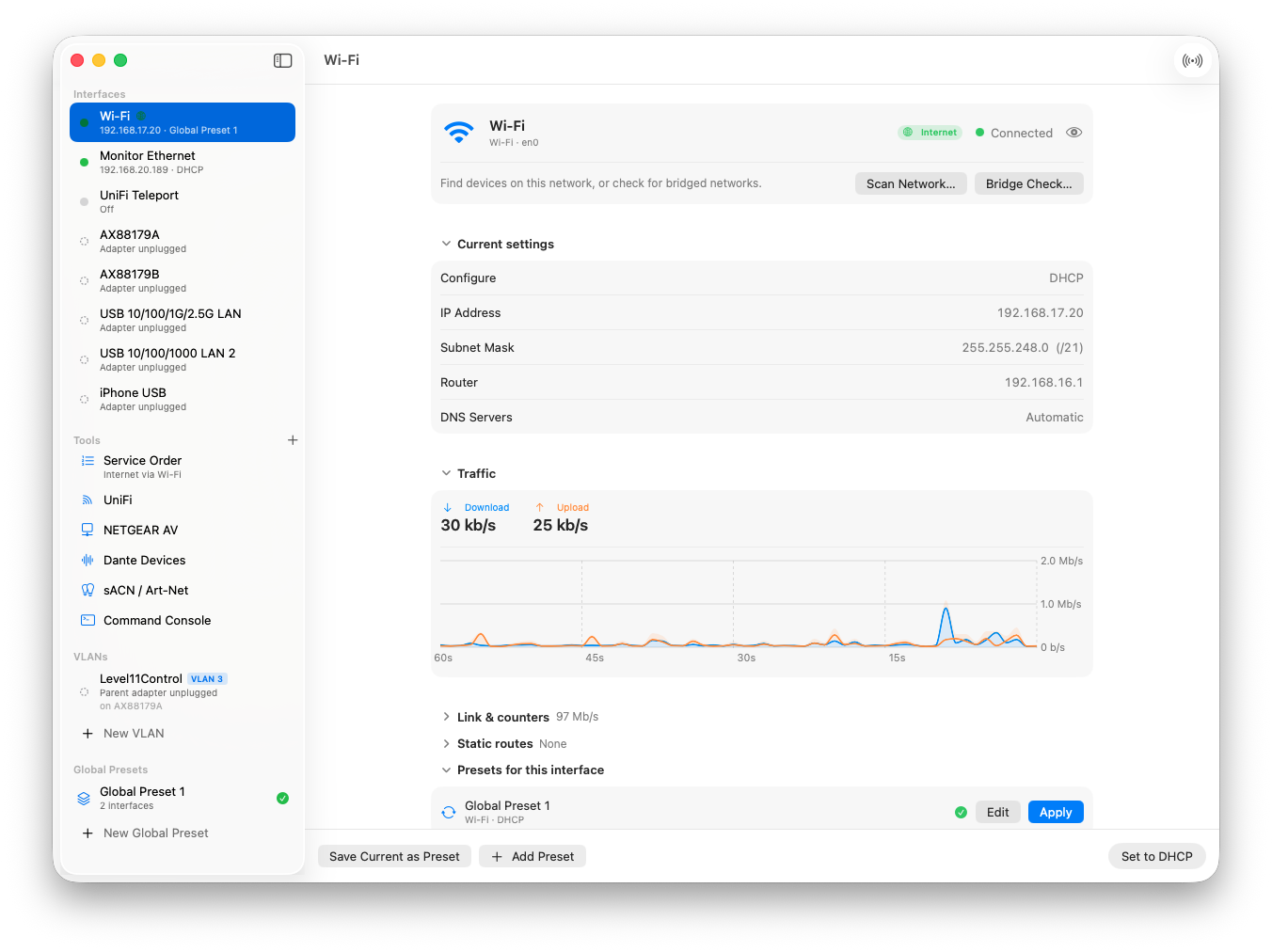
Every interface's real state and its presets, with tools, VLANs and global presets in the sidebar.
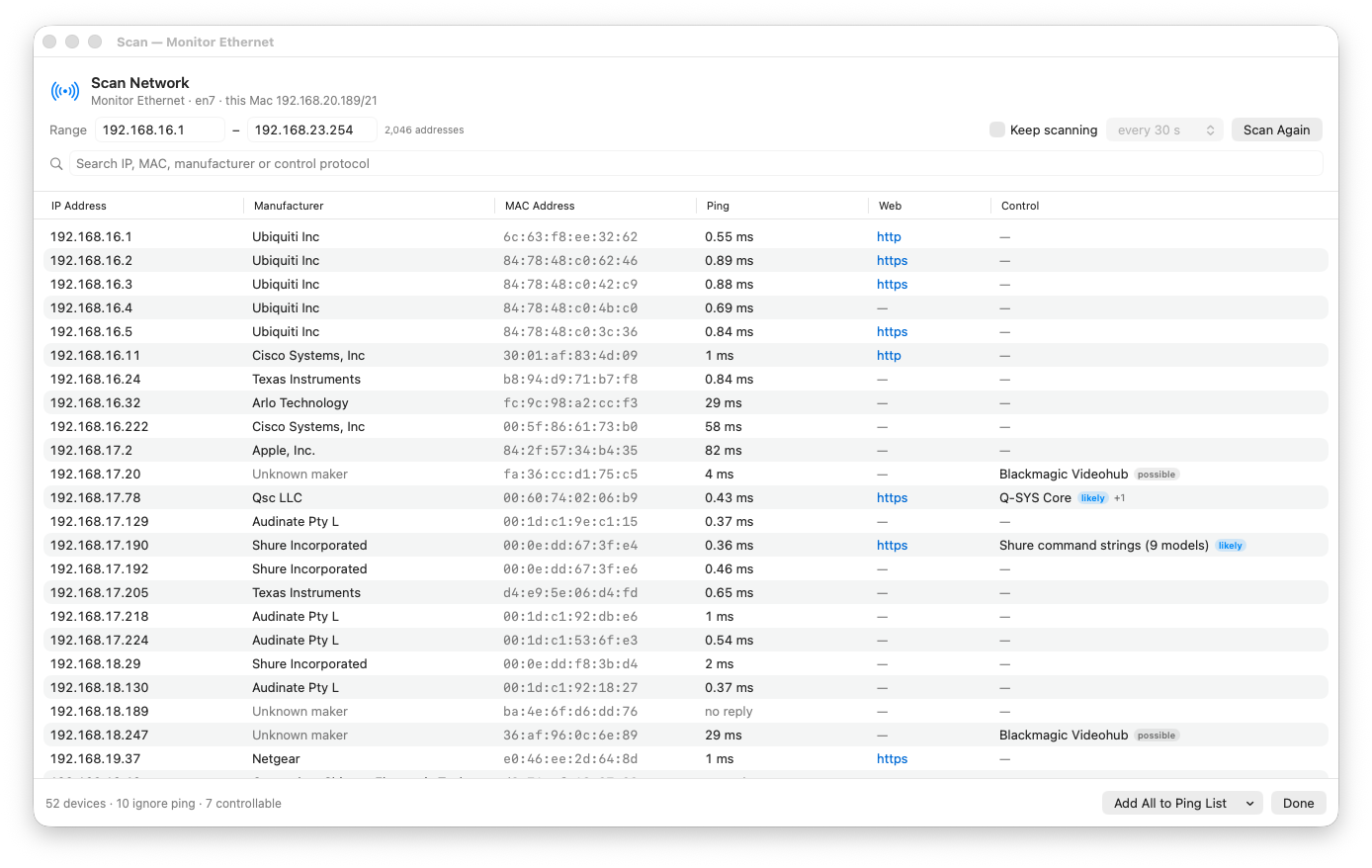
Scan a network: every device's maker, ping and web page — and which ones IP Wizard can control.
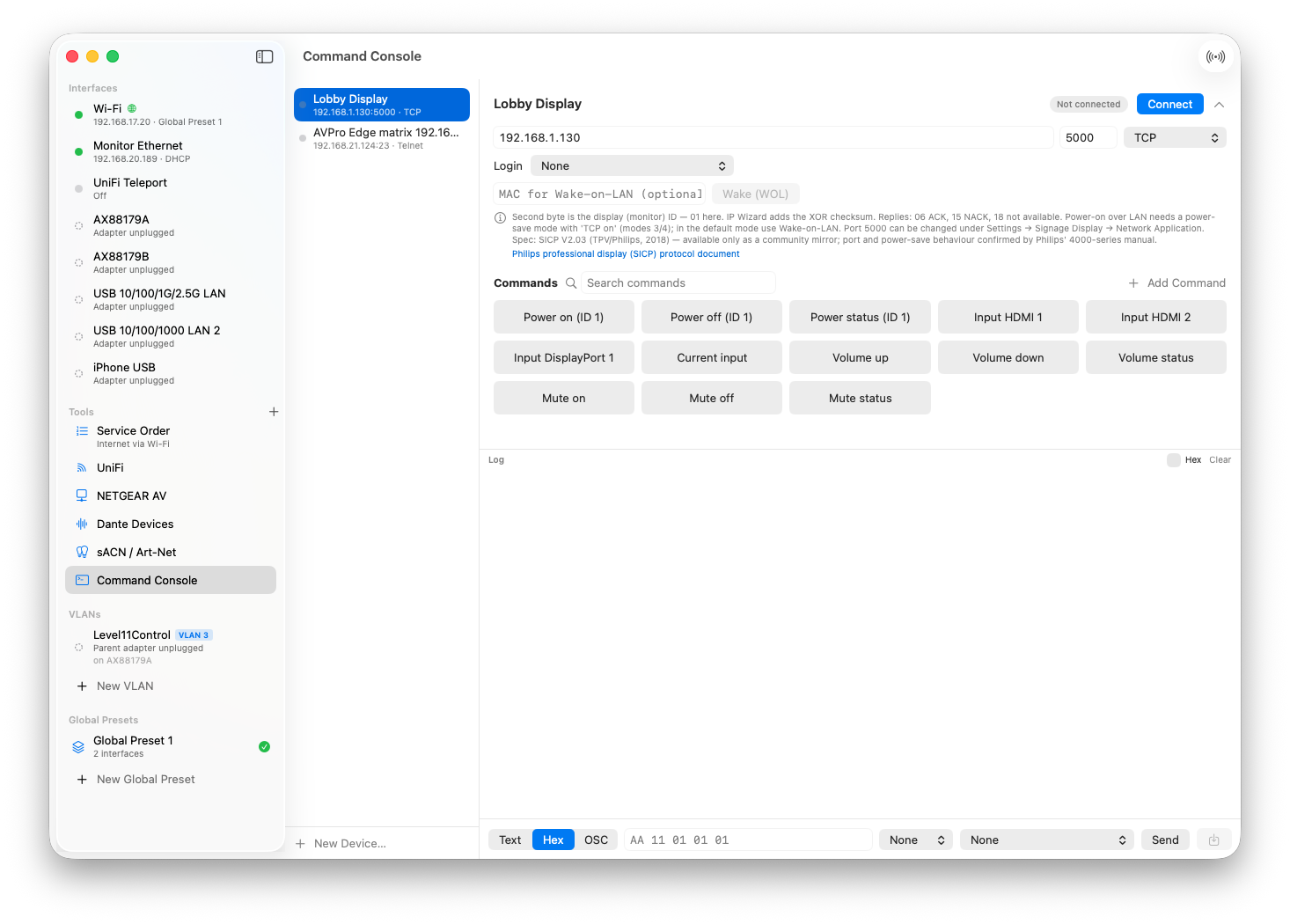
The command console: pick a template, press a button. Each template links to the manufacturer's own protocol document.
What it does
Presets per interface
DHCP or manual IP, subnet (255.255.255.0 or /24), router and DNS for each port — Wi-Fi, USB dongles, Thunderbolt adapters. Apply with one click from the window or the menu bar. Rename an interface in System Settings and its presets follow it.
Global presets
Tick the interfaces a job needs — say the dongle on the console network and the built-in port on DHCP — and switch them all together with a single password prompt.
Live ping panel
Save device lists per rig and watch every device's reply time and last 30 pings while you change settings. Right-click a device to copy its address or open its web page.
“Why can’t I reach it?”
Each device shows which interface can reach it directly — or warns when none of your interfaces is on its subnet, the most common reason a device won't answer.
Honest link status
More detail than System Settings shows, at a glance:
VLANs, service order & routes
Create, edit and move tagged VLAN interfaces, or plan them before the adapter is plugged in. Reorder which interface carries internet, and add static routes — the settings System Settings hides.
Traffic, link & speed test
Live throughput per interface, link speed and error counters, so you can see at a glance which port is actually carrying the show. Run an internet speed test on any one interface — download, then upload, with live readings, latency and responsiveness — using macOS's built-in test.
Scan the network
Find every device on a subnet — up to a whole /16, about half a minute — with its maker, ping and web page. IP Wizard checks for known control protocols and marks what it found as confirmed, likely or possible. Keep scanning to see devices come and go.
Bridge Check
Listens on an interface and tells you if it can see more than one network — the tell-tale sign of a bridged or looped network.
Command console
Send TCP, UDP, Telnet, HTTP(S), WebSocket or OSC commands, in text or hex, with checksums and logins handled for you. 235 ready-made templates for displays, projectors, cameras, DSPs, mixers, matrix switchers, LED processors, show control and power — each traced to the manufacturer's documentation.
Switcher, router & camera pages
Dedicated control pages for Blackmagic ATEM, Videohub and HyperDeck, AJA KUMO, and Panasonic, BirdDog and Sony PTZ cameras: route with your own labels, cut and auto, run macros, play and record clips, drive pan/tilt/zoom and recall presets. Right-click a device in a scan to open its page.
Room & rack control
Pages for the gear in every room: projectors over PJLink (power, input, mute, lamp hours, errors, network search), Samsung, Sharp NEC, Philips and LG displays, matrix switchers from AVPro, Atlona, Extron, Kramer and Lightware with a routing grid and presets, PDUs from WattBox, APC, Panamax, Synaccess, Raritan, Dataprobe and CyberPower with every outlet's state, and LED walls on NovaStar and Brompton Tessera processors: brightness, blackout, freeze and presets, plus test patterns on Tessera.
DSP & Shure
Browse a Q-SYS Core's named components and drive their controls live, work Biamp Tesira level and mute blocks, and recall presets. Watch Shure ULX-D, QLX-D, SLX-D and Axient Digital receivers side by side with live RF and audio meters, change ULX-D and Axient Digital receivers' IP settings and see their network mode, and control MXA and DCA901 mics, MXN5 speakers, P300 and IntelliMix: mutes, gains, presets and LEDs.
UniFi, NETGEAR AV & Luminex
Connect your UniFi account, NETGEAR AV switches or Luminex GigaCores and the scan shows which switch port each device is plugged into, with PoE power draw — and power-cycle a PoE port when a device needs a kick. UniFi gets a port-by-port table of what's plugged in where, and on NETGEAR AV switches you can set a port's VLAN.
Luminex GigaCore
Ports with live traffic, PoE on/off and power-cycle, port names and speed, groups with IGMP snooping and querier settings per group, link aggregation, RLinkX redundancy at a glance — which links are carrying traffic and which are standing by — plus profiles and an event log of everything that changes.
Dante, NDI & lighting
Browse Dante devices and NDI sources on the network — click an NDI source for a live preview — and watch live sACN and Art-Net universes — up to 1,024 sACN at once. Capture the look on every universe as a scene and play it back held on the network, over sACN at the priority you choose (under, equal to or over the console) or Art-Net. IP Wizard finds Dante devices even outside your subnet, shows the clock leader, and can add a temporary address to reach them. The audio-and-video tools start hidden — turn them on with the + next to Tools.
Windows PCs & Parallels
Run Windows in Parallels for Dante Controller or a vendor's config tool? Install the free IP Wizard Relay on it, pair once with a code, and its network adapters join your Mac's in the sidebar — same presets, same global presets, applied in one click. Works on real Windows PCs too. Download the relay for Parallels on Apple silicon (arm64) or Intel/AMD PCs (x64).
Built for the install and the gig
Hide the interfaces you never use, sort live links to the top, and export presets to share a whole system's — or a whole show's — network setup with the rest of the team. Updates install from inside the app, and Help ▸ Send Feedback reaches us directly.
System requirements
Required
- macOS 13 Ventura or later
- Apple silicon or Intel Mac — one universal app runs natively on both
- An administrator password to apply network settings (IP, subnet, router, DNS). Scanning, ping and device control don't need one
- Local Network access — macOS 15 and later ask once; allow it so scanning, discovery and device control can reach your gear
Optional
- NDI 6 runtime (free from ndi.video) for NDI preview and routing
- A UniFi account API key for UniFi switch ports and PoE
- An internet connection for the speed test and updates
- Touch ID to unlock the saved administrator password
- Windows 10 or 11 (in Parallels or a real PC) to control a PC's network settings with IP Wizard Relay
Changing network settings needs an administrator password, the same as in System Settings. IP Wizard can remember it in your Mac's Keychain and ask for Touch ID before using it. It uses macOS's built-in networksetup tool and has no account. The only times it contacts a server are when you connect your own UniFi account, run an internet speed test (macOS's built-in test, using Apple's servers), send feedback, or check for updates.